Today Topics is only for those persons how want to project manangement apps for solo creators.
A gentle beginning
It starts with a desk.
A few notes scattered.
A browser breathing heavy.
Three projects asking for your attention at once.
If you work alone, you know this feeling.
Not chaos. Just a slow drift.
The right app doesn’t add noise.
It creates a little room.
It holds what you can’t hold in your head, then steps aside.
Some apps shout.
These do not.
What solo creators actually need
You don’t need every view under the sun.
You need a clear place to put things.
A single inbox for ideas.
A way to see today without seeing everything.
A calendar that respects your time.
Views should bend to your work, not the other way around.
Lists for flow.
Boards for stages.
Calendars for promises.
Reminders should arrive like a tap on the shoulder.
Never a shove.
How to read this guide
We’ll talk about how each app feels.
Not just what it can do.
Because making things isn’t about features.
It’s about attention, energy, and small moments of momentum.
Pick for fit, not for fear of missing out.
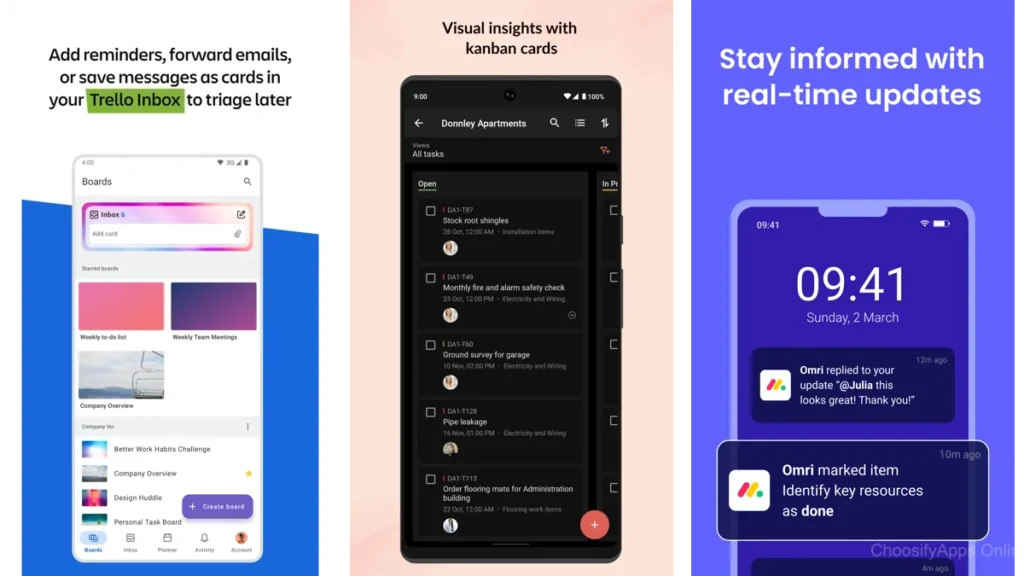
Trello — visual calm on a board
Trello is a board you can see at a glance.
Cards move from left to right like a quiet tide.
Deadlines sit lightly on the edge.
For a solo creator, a Trello board can mirror your week.
Ideas on the left, in-progress in the middle, done on the right.
You can open a card and everything’s inside—checklists, files, notes, dates.
Where it shines: simple workflows that benefit from a visual lane.
Where it can get heavy: too many boards, too many lists.
Keep one board for your life’s current chapter.
Notion — your project as a room you can rearrange
Notion is a room you furnish yourself.
Pages become databases, databases become views, and views become your daily plan.
It’s surprisingly comfortable once you place the furniture.
For one person, Notion can hold everything: a content pipeline, briefs, assets, and tasks.
But the blank canvas can tempt you to build instead of ship.
Start with one database and two views.
A table for planning.
A board for movement.
When you need more, the walls are easy to move.
Todoist — a list that quietly keeps score
Todoist is a list with rhythm.
You type “Write draft tomorrow 4pm” and it understands.
Subtle priorities, recurring tasks, and projects that stay out of the way.
For solo creators, it’s the sweet spot between light and capable.
Labels and filters help when your work sprawls across clients or themes.
Karma scores add a soft nudge without judgment.
If a board feels like too much, this list might be enough.
TickTick — tasks, habits, and a metronome
TickTick threads your tasks through a small calendar, a habit builder, and a Pomodoro timer.
It’s designed for momentum—tiny cycles of focus and rest.
If your creative work benefits from routine, TickTick gives you one place to sit down and begin.
Timers are built-in, habits are visible, and the week view is tidy.
It’s a modest kind of all-in-one that doesn’t overreach.
Asana — structure for when your solo work is bigger
Asana keeps projects in shape.
Sections, assignees (even if it’s always you), due dates, and simple timelines keep larger work coherent.
If you run multi-step launches, client deliverables, or repeating campaigns, Asana’s structure can be a kindness.
It may feel like more than you need on slow weeks, but it will protect the complex ones.
ClickUp — the everything drawer
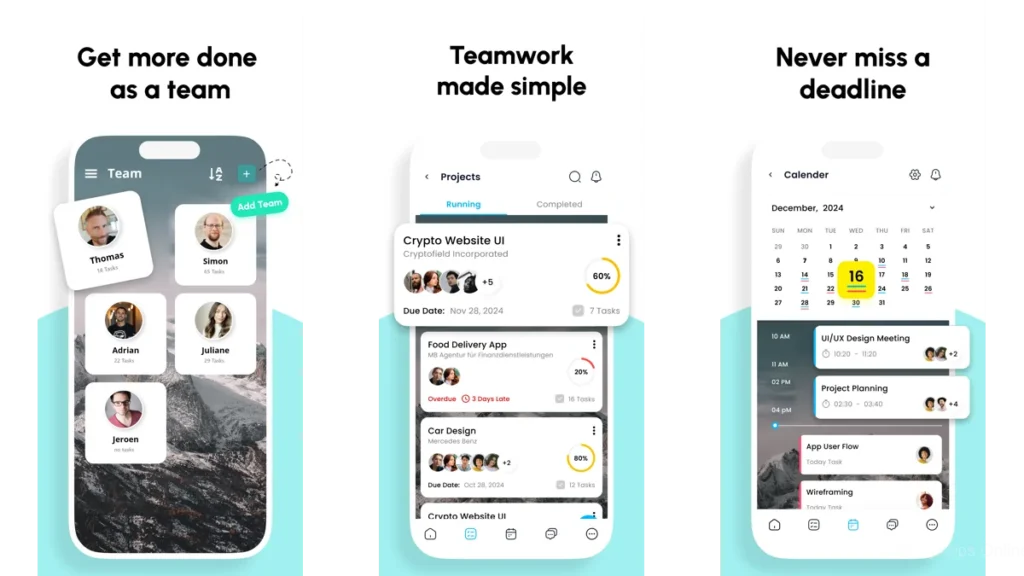
ClickUp tries to hold almost everything—tasks, docs, chat, dashboards.
For some solo creators, that consolidation removes a subtle drag.
For others, it invites tinkering.
If your work has many moving parts or you like to design your own system, ClickUp gives you room.
Just decide early what you won’t use, so the tool stays quiet.
Microsoft To Do & Google Tasks — the lightest lift
Sometimes you just want a list in your pocket that knows your calendar and email.
Microsoft To Do’s My Day is a gentle daily plan; Google Tasks lives where your events and messages already are.
They don’t pretend to be more than they are.
For many solo creators, that’s the point.
Any.do — tasks that live with your day
Any.do blends to-dos with your calendar so the day has one surface.
It’s gentle about nudges and keeps planning in the same place as commitments.
If you want a simple, pleasant daily briefing, this is a good home.
Quire & MeisterTask — focused kanban without the noise
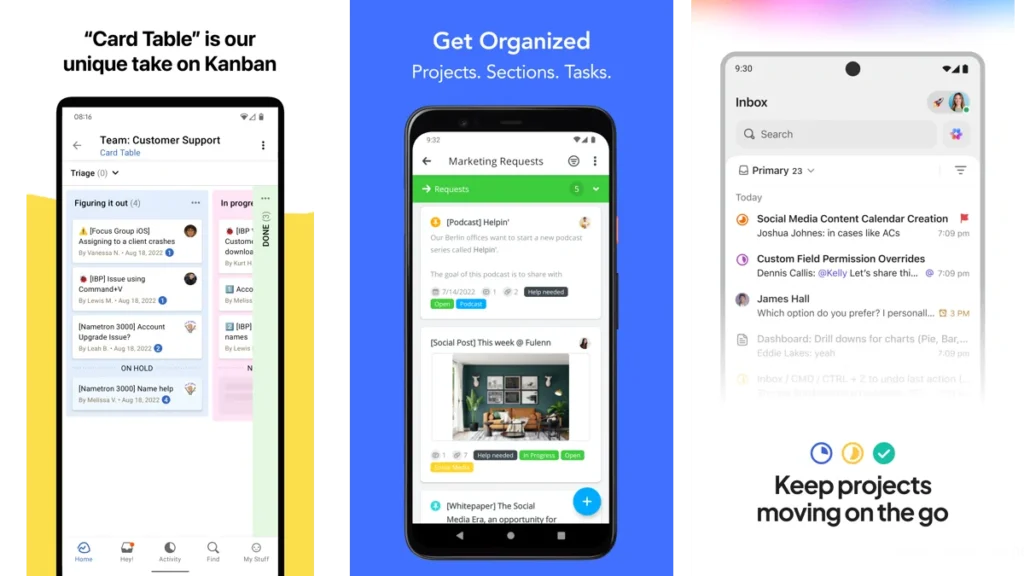
Quire gives you nested tasks and clean boards; MeisterTask offers a smooth, modern kanban with just enough structure.
Both feel light, especially on mobile, and can carry a content pipeline or product roadmap without turning heavy.
Airtable — a table that behaves like a studio wall
Airtable is a database that doesn’t feel like one.
You can start with a table, then flip it into a board, calendar, or gallery.
For creators who catalog assets, track sponsors, or manage multi-step content, it can be a quiet powerhouse.
Think of it as a studio wall you can sort.
Basecamp — keeping the project in one tidy place
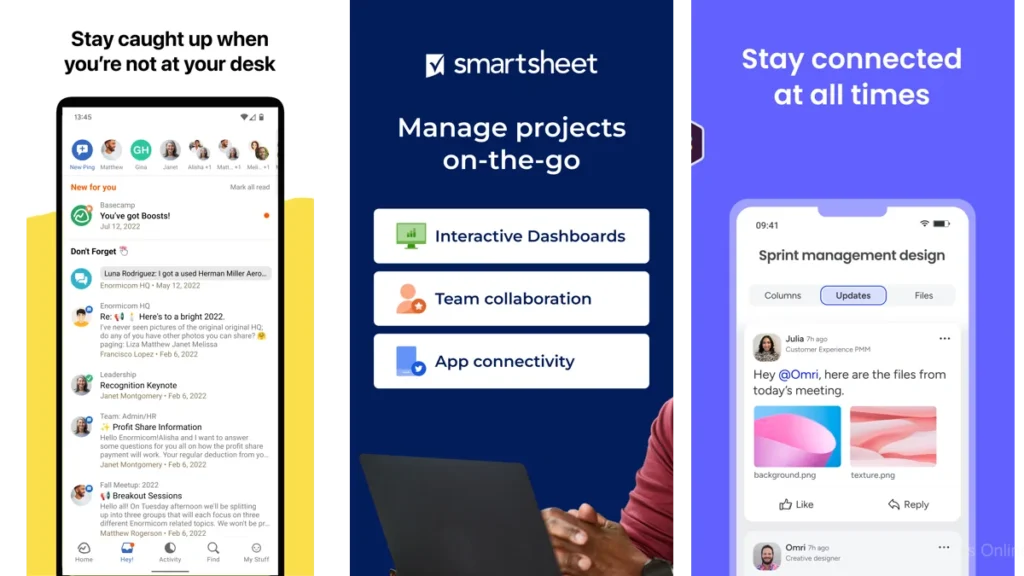
Basecamp collects the parts of a project—messages, to-dos, schedules, docs—into one calm home.
For a solo creator, that means less hopping.
Everything where you left it.
It’s not about micro-features.
It’s about a steady place to land.
Zenkit To Do, Taskade, and Joplin — small, sharp tools
Zenkit To Do is a simple shared list when you occasionally collaborate.
Taskade blends lists, outlines, and mind-maps with a modern twist.
Joplin is private, open-source, and lets tasks live next to notes.
When you want minimal friction and clear edges, these are worth a look.
Quick comparison (plain language)
| App | Feels like | Best when |
|---|---|---|
| Trello | A corkboard with lanes | You move work through stages |
| Notion | A room you can rearrange | You want one home for notes, tasks, and content |
| Todoist | A focused checklist | You plan by days and dates |
| TickTick | A steady routine | You like timers and habits tied to tasks |
| Asana | A project skeleton | You run larger, repeatable projects |
| ClickUp | A control room | You need many parts in one place |
| Microsoft To Do / Google Tasks | A pocket list | You live in Outlook or Gmail/Calendar |
| Any.do | A day planner | You want calendar and tasks together |
| Quire / MeisterTask | A clean kanban | You want boards without bulk |
| Airtable | A sortable wall | You manage assets and pipelines |
| Basecamp | A project home | You want messages, files, and tasks side by side |
| Zenkit To Do / Taskade / Joplin | A small, sharp tool | You crave minimal friction or private notes with tasks |
Which one should you choose?
Three quiet paths:
1) The List Path.
If dates carry your week and you think in today/tomorrow, choose Todoist or Microsoft To Do. Start small. Make one project called “Now.” If you outgrow it, the habit stays with you.
2) The Board Path.
If your work moves through stages—ideas, draft, edit, publish—choose Trello or MeisterTask. Keep three columns. Add more only when the work asks for it.
3) The Studio Path.
If you wrangle assets, briefs, and tasks together, choose Notion or Airtable. Build the simplest table that tells the story of your project. Two views are enough: plan and progress.
If you need an all-in-one with room to grow, ClickUp and Asana are there when the work becomes larger than a list but not yet a team.
Still unsure?
Set a 20-minute timer. Create one mini-project in each contender.
Pick the one that feels like a deep exhale, not a new chore.
Practical advice for a calmer workflow
One inbox.
Collect everything in one place. If you must have more, designate one master inbox and review it daily.
One weekly review.
Ten minutes on Friday: clear the inbox, choose three outcomes for next week, archive what’s done.
One calendar.
Tasks belong to lists until they are promises. When you give a task a time, treat it like a meeting with yourself.
Make your tool smaller every month.
Delete views, lists, boards you didn’t touch.
What remains is what matters.
For a thoughtful primer on minimalist productivity, the ideas behind Getting Things Done echo here: capture, clarify, and commit—lightly.
Conclusion — room to breathe
A good app doesn’t make you work faster.
It helps you feel lighter.
Projects don’t shrink.
But the space around them can grow.
Choose the tool that steps aside after doing its job.
Trust the quiet.
Let the room open.
FAQ
How many apps should I use at once?
One primary app for planning, one calendar for time. If you add a second tool, give it a single job and a single rule.
What if I’m overwhelmed by options?
Pick two finalists. Build the same tiny project in both. Keep the one that makes you forget about the software.
Can a simple list really manage a complex project?
Often, yes. Lists scale with careful naming and weekly reviews. When you need stages and attachments, move to a board or a database.
How do I avoid spending hours configuring?
Set a time box for setup—thirty minutes—and then ship something. Adjust only after a week of use.
What’s the best app for content creators specifically?
If you juggle ideas, drafts, assets, and deadlines, Notion or Airtable provide flexible pipelines without pushing you into a rigid mold.